How to send shipment tracking emails in WooCommerce
WooCommerce has no Shipped email and no tracking field. Four ways to get a tracking number to the customer, from a free note to a plugin that does it all.
In short
- WooCommerce's own emails carry no tracking number and there is no Shipped status; whatever you choose, you are adding both.
- A note to the customer is free and goes out at once, but it is typed by hand and only has a link if you paste one.
- A snippet, WooCommerce Shipping and the Shipment Tracking extension all put the number in the Completed order email, so Completed has to mean shipped.
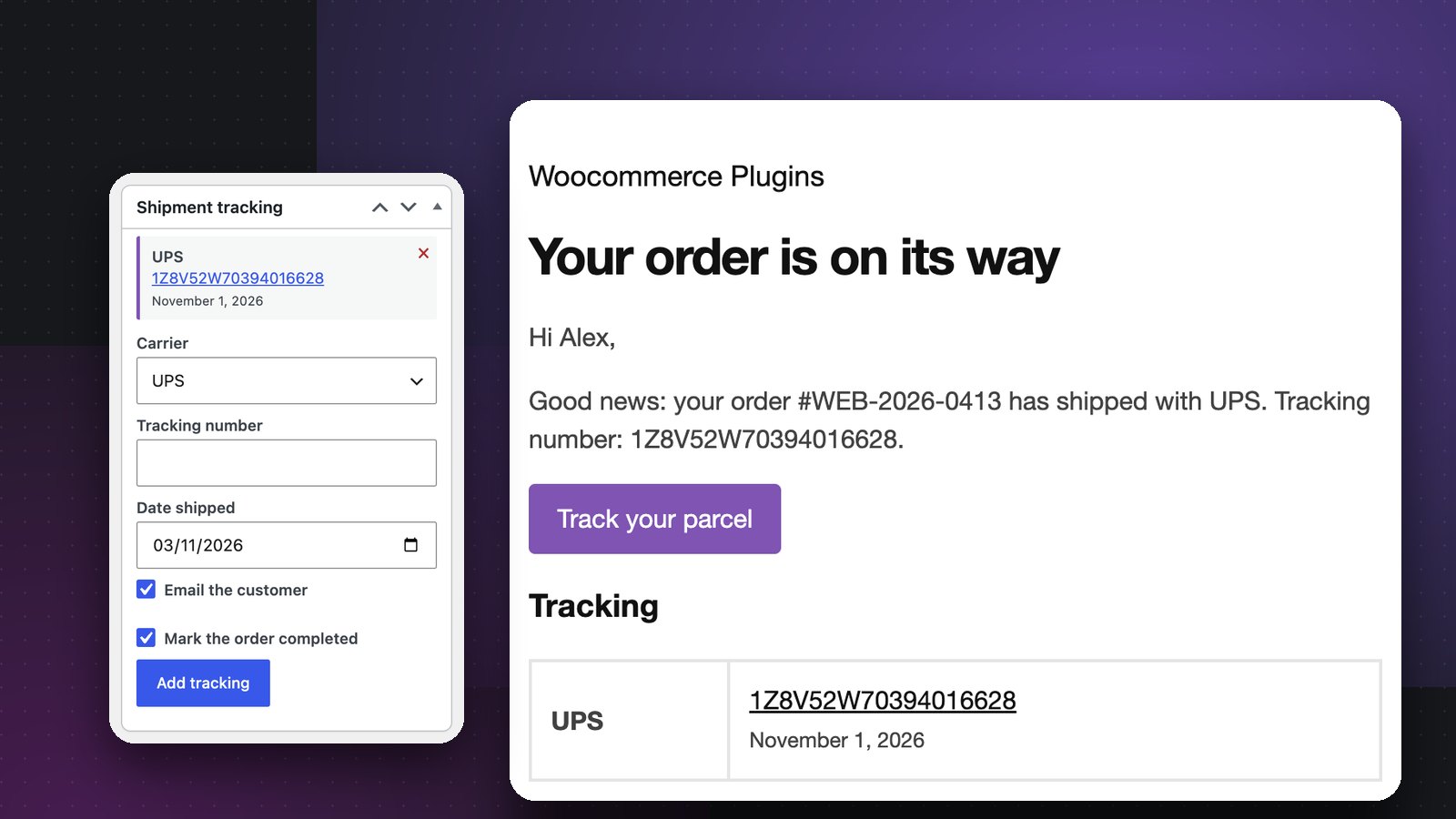
- A shipment tracking plugin sends a Shipped email the moment a number is added, builds the carrier link, and takes numbers by CSV or REST API.
The most common email a store gets after the sale is "where is my order?". The answer that stops it is a shipping confirmation email with the carrier's name, the tracking number and a tracking link that opens the carrier's tracking page with the number already filled in.
WooCommerce does not send that email. It sends a Processing email when the order is paid and a Completed email when you mark the order complete, and neither has anywhere to put a tracking number. There is no Shipped status and no tracking field on the order. You add that part yourself, and this guide walks through the four ways to do it: a free manual note, a short code snippet, WooCommerce's own shipping tools, and a shipment tracking plugin.
Does WooCommerce send tracking emails on its own?
Out of the box WooCommerce has these customer emails, under WooCommerce > Settings > Emails:
- Processing order, sent when payment is taken. Customers read it as "we have your order".
- Completed order, sent when the order status changes to Completed. Most stores mark an order complete when it ships, so customers read this one as "it's on the way", but the email itself has no tracking number unless something adds one.
- On-hold order, Refunded order, Customer invoice, Customer note, New account and Reset password, none of which have anything to do with shipping.
The Customer note email is the one gap you can use without installing anything, which is Option 1. Everything else needs a snippet, an extension or a plugin.
Option 1: email the tracking number as a customer note
Every order has an Order notes box on the right of the order screen. Notes are private by default, but the Visibility dropdown underneath has a second choice, Public note to customer, and those notes are emailed.
- Open the order under WooCommerce > Orders.
- In Order notes, type the carrier, the tracking number and, if you want a clickable link, the full tracking URL from the carrier's site.
- Change Visibility from Private note to Public note to customer and click Send note to customer.
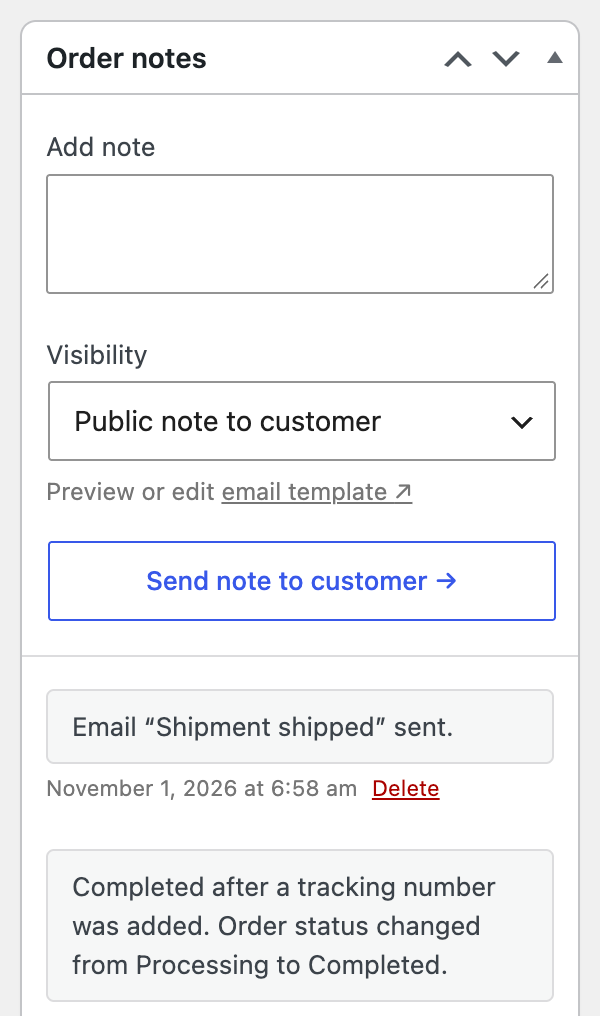
WooCommerce sends the Customer note email straight away with your text in it, and the note stays on the order as a record.
This is fine for a store that ships a few orders a week. It stops working as the numbers grow, because every note is typed by hand, the link is only there if you paste it, the number does not appear in My Account or on the thank-you page, you cannot search orders by tracking number, and there is nothing to import from a carrier export.
Option 2: add the tracking number to the Completed order email with a snippet
If you are comfortable with a few lines of PHP, you can store the tracking number on the order and print it in the Completed order email. The number lives in a custom field on the order, and a hook adds it under the order table in the email.
First, add the number to the order. Open the order, find the Custom Fields panel (if it is hidden, turn it on under Screen Options at the top right), and add a field named _tracking_number with the number as its value.
Then add this to a code snippets plugin or your child theme's functions.php:
add_action( 'woocommerce_email_after_order_table', function ( $order, $sent_to_admin, $plain_text, $email ) {
    if ( 'customer_completed_order' !== $email->id ) {
        return;
    }
    $number = $order->get_meta( '_tracking_number' );
    if ( ! $number ) {
        return;
    }
    if ( $plain_text ) {
        echo "Tracking number: {$number}\n";
    } else {
        echo '<p><strong>Tracking number:</strong> ' . esc_html( $number ) . '</p>';
    }
}, 10, 4 );
Mark the order Completed and the email goes out with the number under the items. Nothing is emailed when you save the field itself; the Completed status is the trigger.
What you do not get: a link to the carrier, because every carrier has its own URL format and you would need to add each one to the snippet; anything in My Account; any protection against a typo in the field name; and any way to add numbers in bulk. It is a good fit for a developer-run store that already marks orders complete at the moment they ship.
Option 3: WooCommerce Shipping and the Shipment Tracking extension
WooCommerce sells two things that put tracking numbers into emails, both from WooCommerce.com.
WooCommerce Shipping is the label service built into WooCommerce. If you buy your labels through it, the tracking number from the label is saved on the order and included in the Completed order email. The catch is who can use it: it prints labels for shipments from a United States address only, with USPS, UPS and DHL Express. If your parcels go out through any other carrier or from any other country, it does nothing for tracking.
WooCommerce Shipment Tracking is a paid extension that adds a provider, tracking number, link and shipped date to each order, and shows them in My Account. It is the same model as the snippet with a proper interface: saving the tracking details does not send an email, and the number goes out in the Completed order email when you complete the order. It also has a REST API for integrations.
Both tie "shipped" to the Completed status. That is fine if you complete orders when they leave the building. It is awkward if you use Completed for something else, such as "delivered" or "closed", or if you want a separate shipped email that customers can tell apart from the completion one.
Option 4: a shipment tracking plugin that sends a Shipped email
A dedicated shipment tracking plugin adds the tracking box to the order, builds the carrier link for you, and sends a Shipped email the moment you add a number, independent of the order status.
There are free options on WordPress.org. Advanced Shipment Tracking for WooCommerce, with 70,000+ active installations, adds Shipped and Partially shipped order statuses and sends its notification when an order moves to Shipped or Completed; custom carriers and the shipping-service integrations are in its paid version.
Our own Shipment Tracking for WooCommerce does the job without a carrier account or an API key, because it builds the tracking link from the number:
- A Shipment tracking box on the order screen: pick the carrier, paste the number, set the date, click Add. Several shipments per order if a parcel is split, all without saving the order.
- Tracking links for 26 carriers built in, including UPS, FedEx, USPS, DHL, Royal Mail, Evri, DPD, Australia Post, Canada Post, India Post and Delhivery, plus your own carriers from a link template.
- A Shipped email with a Track your parcel button, sent when the number is added if the "Email the customer" box is ticked. It is a normal WooCommerce email, so the subject, heading and extra text are editable under Settings > Emails, and it can be switched off.
- The number in the Completed, invoice and note emails too, on the thank-you page and in My Account, where orders get a Track button.
- A public tracking page from the
[shipment_tracking]shortcode, where a customer looks an order up by order number and billing email. - An option to mark the order Completed when a number is added, an order note for every change, a Tracking column and search on the orders list.
- CSV import of many numbers at once, and a
shipment_trackingfield on the REST API orders endpoint for a warehouse or 3PL to fill in.
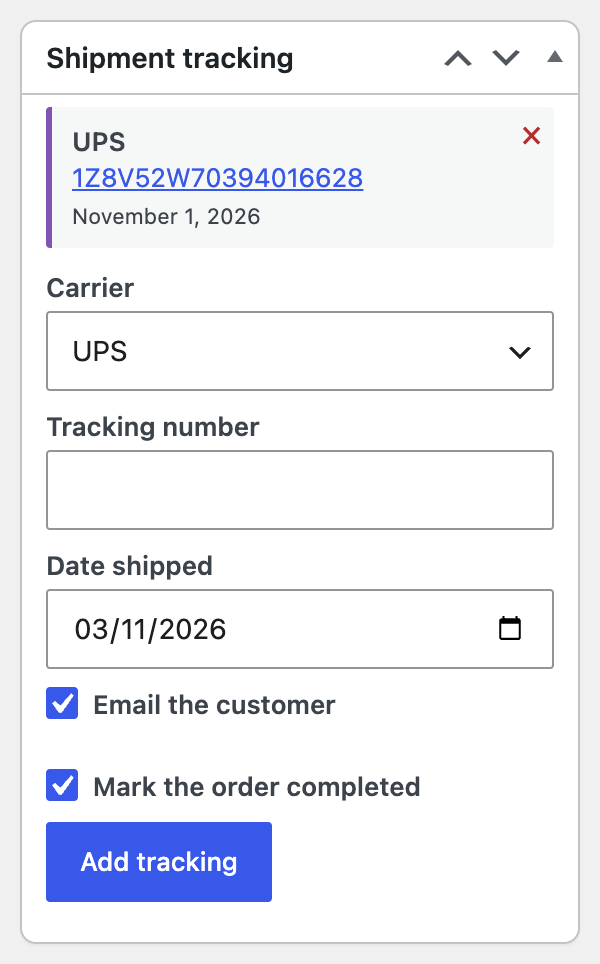
Setting it up is three steps:
- Install and activate the plugin, then enter your licence key.
- Under WooCommerce > Settings > Shipment Tracking, pick the default carrier, decide whether adding a number emails the customer and completes the order by default, and add any carrier that is not in the list as
Name | https://carrier.example/track/{number}. - Open an order, add the number in the Shipment tracking box, and the Shipped email goes out.
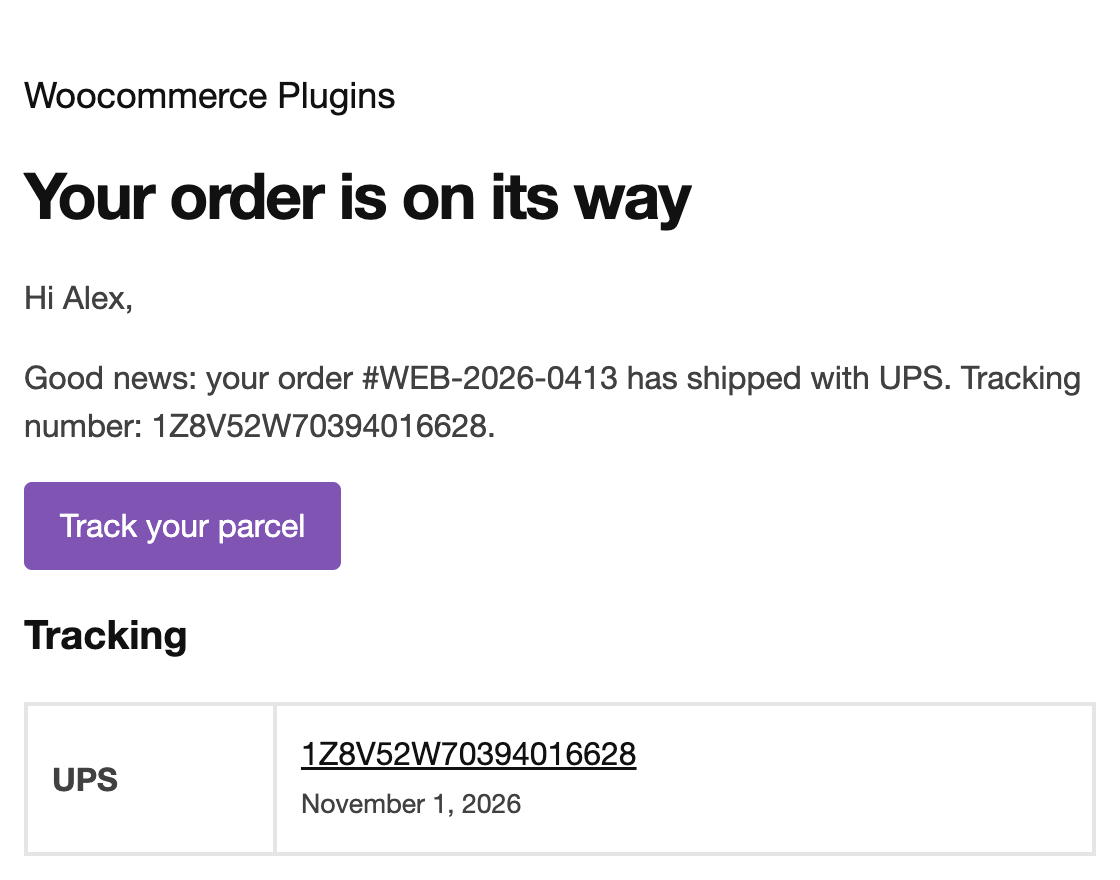
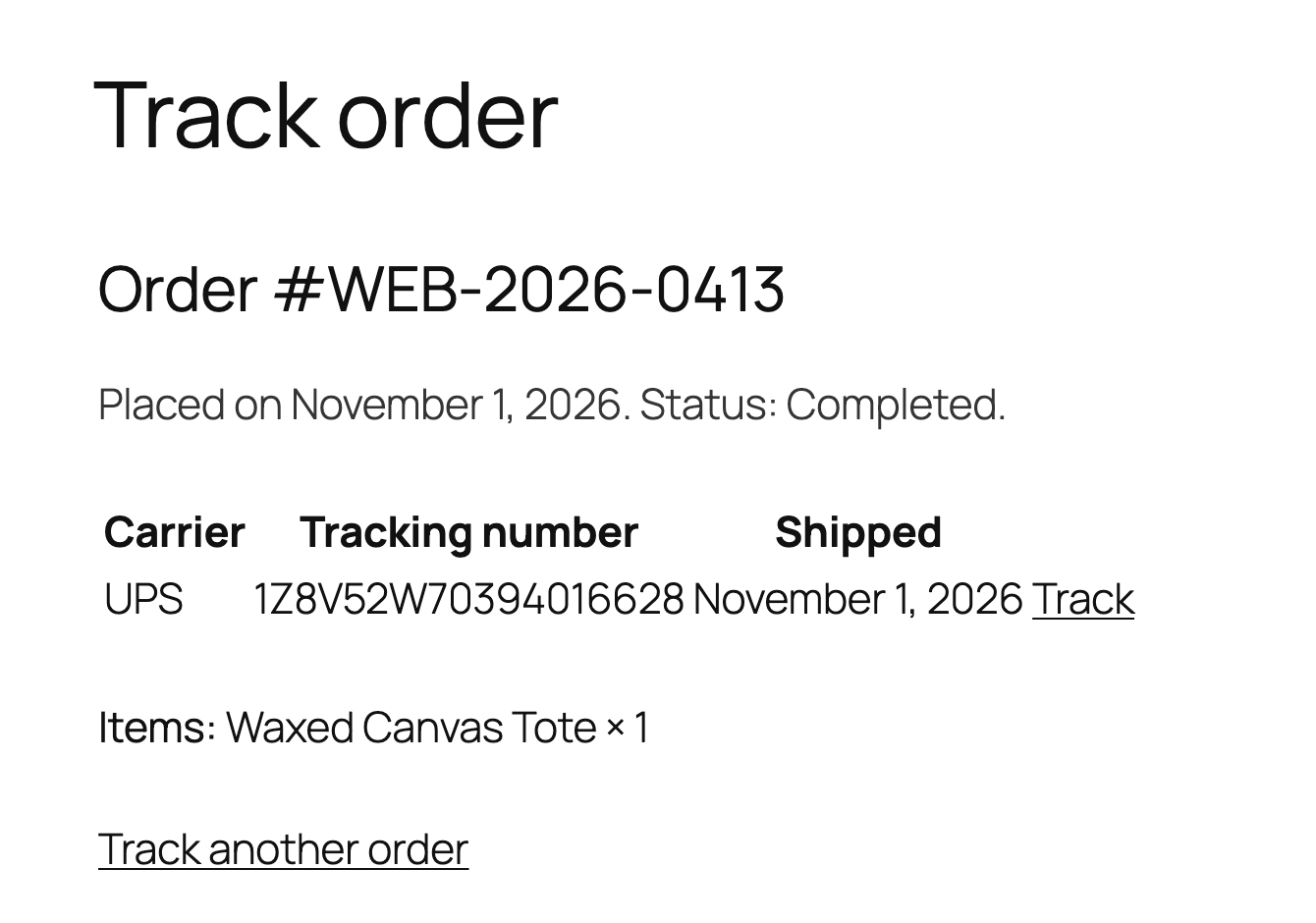
The same tracking number shows on the thank-you page, in My Account, and on the store's tracking page, where anyone can look an order up by order number and billing email:
How to send tracking emails automatically
Typing numbers in one at a time is fine for a handful of orders a day. Past that, you want the tracking email to go out without anyone opening the order:
- From a carrier or warehouse export. Most carrier portals and fulfilment services can export a spreadsheet of order numbers and tracking numbers. Our plugin imports that CSV under WooCommerce > Shipment Tracking, with order_number, carrier, tracking_number and an optional date_shipped column. Numbers already on an order are skipped, and you choose in the same run whether to email the customers and complete the orders.
- From a system that writes to the REST API. A warehouse system, a 3PL or an automation tool that can make HTTP requests can fill the
shipment_trackingfield on the orders endpoint, and the Shipped email goes out as each number lands. The WooCommerce Shipment Tracking extension has a REST API as well, with the email tied to the Completed status. - From labels bought in WooCommerce. If you print labels through WooCommerce Shipping, the number is saved on the order for you and goes out in the Completed order email, with nothing to type.
Whichever route you use, turn on "mark the order completed when a number is added" if Completed means shipped in your store, so one import or API call updates the status and emails the customer together.
Which option should you use?
| Note to customer | Snippet | WooCommerce Shipping or Shipment Tracking extension | Shipment Tracking plugin | |
|---|---|---|---|---|
| Cost | Free | Free | Per label, or a paid extension | Paid plugin |
| When the customer is emailed | When you add the note | When the order is marked Completed | When the order is marked Completed | When the number is added, or on Completed |
| Carrier link in the email | Only if you paste it | No | Yes | Yes, 26 carriers plus your own |
| Shown in My Account | No | No | Yes | Yes, plus the thank-you page and a tracking page |
| Several parcels per order | In the text | No | Shipment Tracking: yes | Yes |
| Bulk import | No | No | Shipment Tracking: REST API | CSV import and REST API |
| Works outside the US | Yes | Yes | WooCommerce Shipping: no | Yes |
The short version:
- A few orders a week: the note to the customer. It is free and takes a minute.
- A developer on hand, and Completed already means shipped: the snippet.
- A US store already buying labels in WooCommerce Shipping: you have tracking in the Completed email already; check it is turned on before buying anything.
- Everything else: a plugin, so the email goes out when the parcel does, the link works for whichever carrier you use, and the customer can find the number again without emailing you.
What a good shipping confirmation email includes
Whichever route you take, the same things make a shipping confirmation email reduce support tickets instead of creating them:
- Say "shipped" in the subject line, with the order number. "Your order #1842 has shipped" beats "Order complete".
- Send it when the parcel is with the carrier, not when the label is printed. A tracking link that says "label created" for two days starts the "where is my order" emails you were trying to avoid.
- Link to the carrier's page with the number filled in. A bare number that the customer has to copy into the right carrier's site is the most common reason tracking emails get a reply.
- Name the carrier. Customers want to know who is turning up, and whether they can redirect the parcel.
- List what is in the parcel when an order ships in parts, so a customer who gets one box does not think the rest was forgotten.
- Put the same information in My Account and on the thank-you page. Emails get lost; the account page does not.
- Reply to a monitored address. If the email comes from noreply@ and the customer has a question, they will find the contact form anyway, and be more annoyed when they do.
Frequently asked questions
Does WooCommerce have a Shipped order status?
No. The built-in statuses are Pending payment, Processing, On hold, Completed, Cancelled, Refunded, Failed and Draft. A Shipped status comes from a plugin, either a shipment tracking plugin that adds one or a custom order statuses plugin where you define it yourself, with its own email.
Can the tracking email show live delivery status?
Not without a carrier account. Live status, such as "out for delivery", lives on the carrier's systems, and reading it needs their API and credentials for each carrier you use. Linking to the carrier's own tracking page gives the customer the same information with nothing to set up, which is why most tracking emails work that way.
Can a warehouse or 3PL add the tracking numbers for me?
Yes, if the tool you use exposes them. Our plugin accepts a CSV of order numbers and tracking numbers and has a shipment_tracking field on the REST API orders endpoint, so a warehouse system can write numbers straight onto orders and the emails go out as each one lands. The WooCommerce Shipment Tracking extension also has a REST API; the note and snippet routes have nothing to automate.
Does any of this work with the block checkout and HPOS?
Tracking is added after the order exists, so the checkout the customer used does not matter. For order storage, check the plugin declares HPOS compatibility; ours stores tracking as order meta that works with High-Performance Order Storage, and the snippet above uses get_meta(), which works with both storage modes.
Written by the Plugin Wizards team
We are App Wizards, the studio behind the 31 WooCommerce plugins on this site. We write these guides from the questions store owners send to support, and we test every step on a real store before it goes up. About us
The plugin in this guide
 Orders & notifications
Shipment Tracking
Tracking numbers on orders with carrier links, a Shipped email, a public tracking page, My Account and CSV import.
View plugin