WooCommerce order fulfillment: in-house vs 3PL
What WooCommerce does when an order comes in, its beta Order Fulfillments feature, how to pack in-house, and how to hand orders to a 3PL and get tracking back.
In short
- WooCommerce moves a paid order to Processing, reduces stock and emails both of you, then leaves the rest to you. There is no packing slip, no label and no Shipped status, and Completed is a status you set by hand.
- A beta Order Fulfillments feature has been in WooCommerce since 10.2. It is off by default with no switch in the settings yet, but one WP-CLI command turns on a fulfillment panel, tracking links for more than 70 carriers and a "Your items are on the way!" email.
- In-house fulfillment is a chain of small jobs, from knowing an order landed to telling the customer it shipped. Each has a free way and a plugin that removes the typing.
- A 3PL needs two things from your store, the orders going out and the tracking numbers coming back. Both work through the 3PL's integration, a scheduled CSV, or the REST API.
Order fulfillment is everything that happens between "thank you for your order" and the parcel on the doorstep: knowing the order came in, picking the items, packing them, printing a label, handing the parcel to a carrier, telling the customer it has shipped, and dealing with whatever comes back. WooCommerce does the first step and sends a couple of emails. The middle is yours.
This guide covers what WooCommerce does on its own, the Order Fulfillments feature it has been building since version 10.2, how to run fulfillment in-house without it eating your week, and how to hand the job to a third-party logistics company, a 3PL, while keeping your orders, stock and customers in sync. Everything here was tried on WooCommerce 11.2 unless it says otherwise.
What WooCommerce does when an order comes in
A customer pays and WooCommerce does four things without you:
- Sets the order status. A card payment that goes through puts the order in Processing. A bank transfer or cheque puts it On hold until you mark it paid. Cash on delivery goes straight to Processing, because the money arrives with the parcel, unless the order includes a downloadable item, which WooCommerce puts On hold so the file is not released before you are paid.
- Reduces stock. Stock levels drop as soon as the order is paid or put on hold, so two customers cannot buy the last one.
- Emails you. The New order email goes to the store address under WooCommerce > Settings > Emails, with the items, quantities and addresses.
- Emails the customer. The Processing order email, with the subject "Your [store name] order has been received!", confirms what they bought.
From there, the order sits in Processing until you change it. The order screen is your pick list: items, SKUs, quantities, the shipping address and any customer note. When the parcel has gone you set the status to Completed, which sends the Completed order email, and that is the end of what WooCommerce does by itself.
What it does not do, out of the box: print a packing slip or a label, connect to any carrier, hold a tracking number on the order, or offer a Shipped status. Those come from the beta feature below, from extensions, or from plugins.
WooCommerce's Order Fulfillments feature (beta)
WooCommerce has been building a fulfillment feature into core. It arrived as a beta in WooCommerce 10.2 in September 2025, and in 11.2 it is still off by default, with the switch hidden from the Features page under Settings > Advanced. A toggle in the settings is promised for a later release. For now, turning it on takes one WP-CLI command, or anything else that sets the option:
wp option update woocommerce_feature_fulfillments_enabled yes
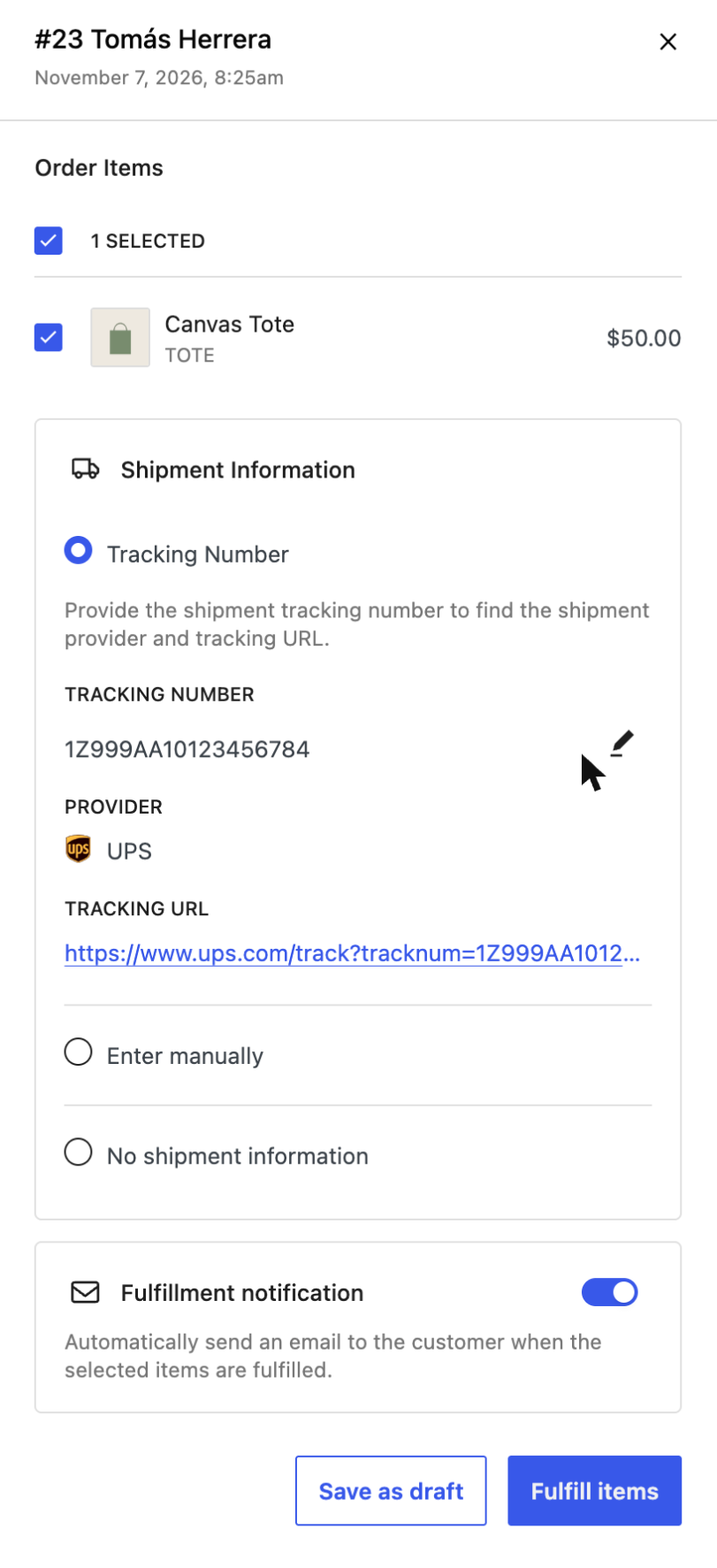
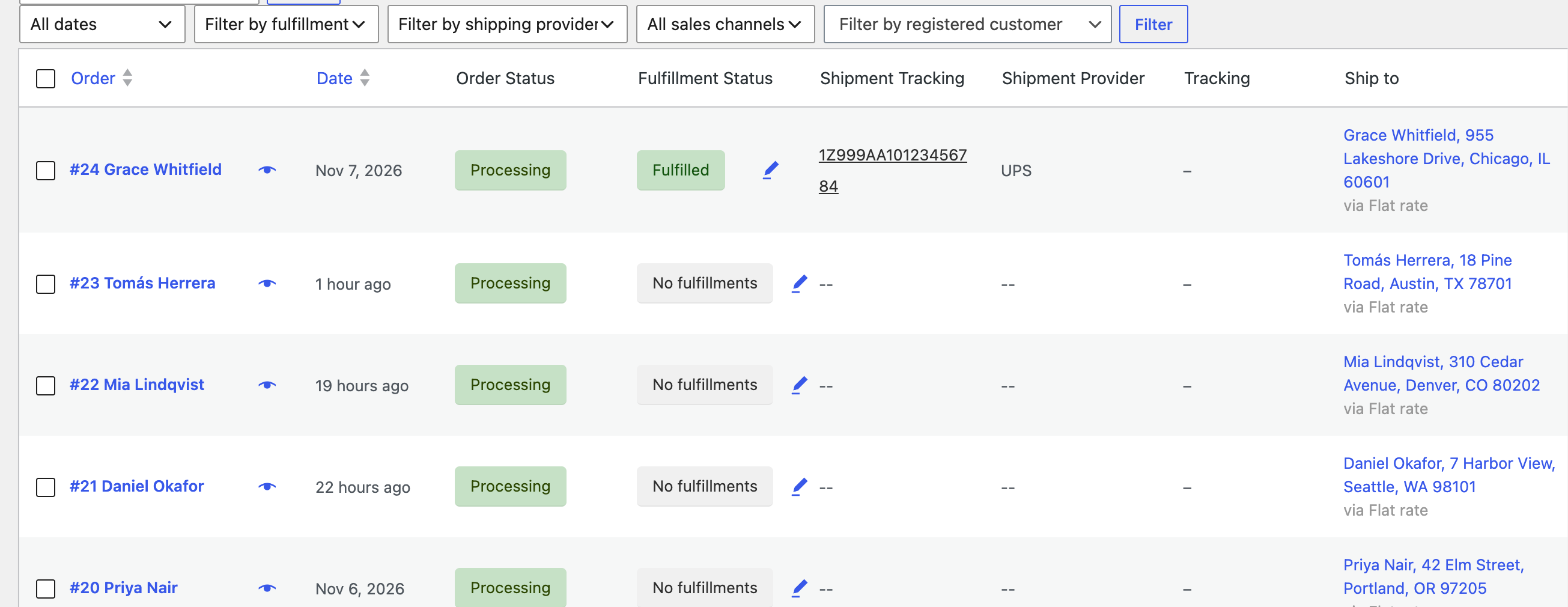
With the feature on, the Orders list gains three columns, Fulfillment Status, Shipment Tracking and Shipment Provider, plus filters by fulfillment status and by provider. Every order starts at No fulfillments. The pencil next to it, or the badge on the order screen, opens a fulfillment panel:
How it works:
- Tick the items that are going in this parcel. An order can have several fulfillments, so a split shipment is two fulfillments with two tracking numbers, and the order shows as Partially fulfilled until the last item goes.
- Add the tracking. Paste the number and click Find info, and WooCommerce works out the carrier from the number's format and builds the tracking link. It knows more than 70 carriers, from UPS, USPS, FedEx and DHL to Royal Mail, Australia Post, PostNL, Canada Post and InPost. If the number is not recognised, Enter manually takes a provider, number and URL, and No shipment information records the fulfillment without any.
- Fulfill items saves it and, with the Fulfillment notification switch on, emails the customer. Save as draft saves it without an email, for a parcel that is packed but not yet collected.
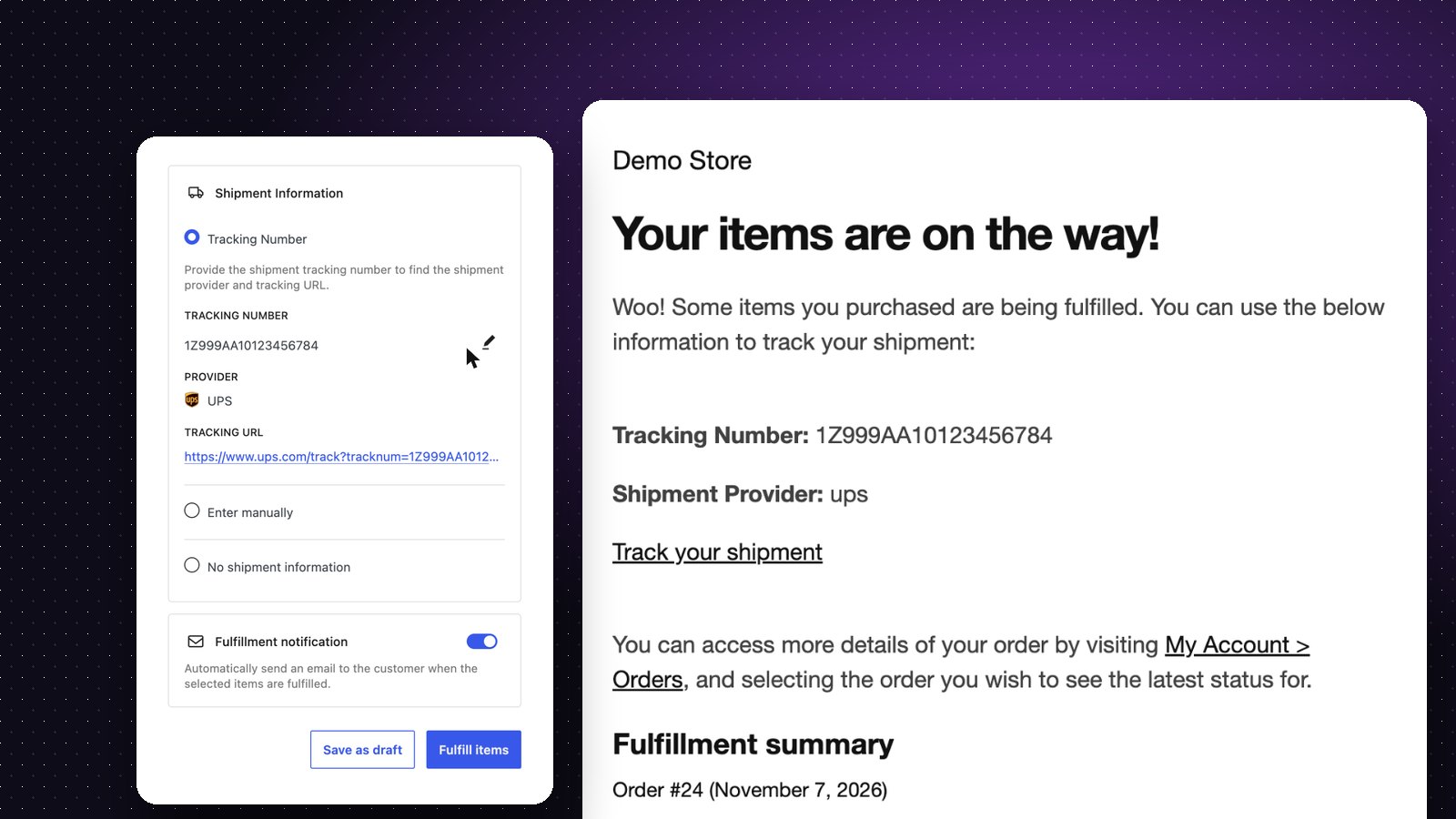
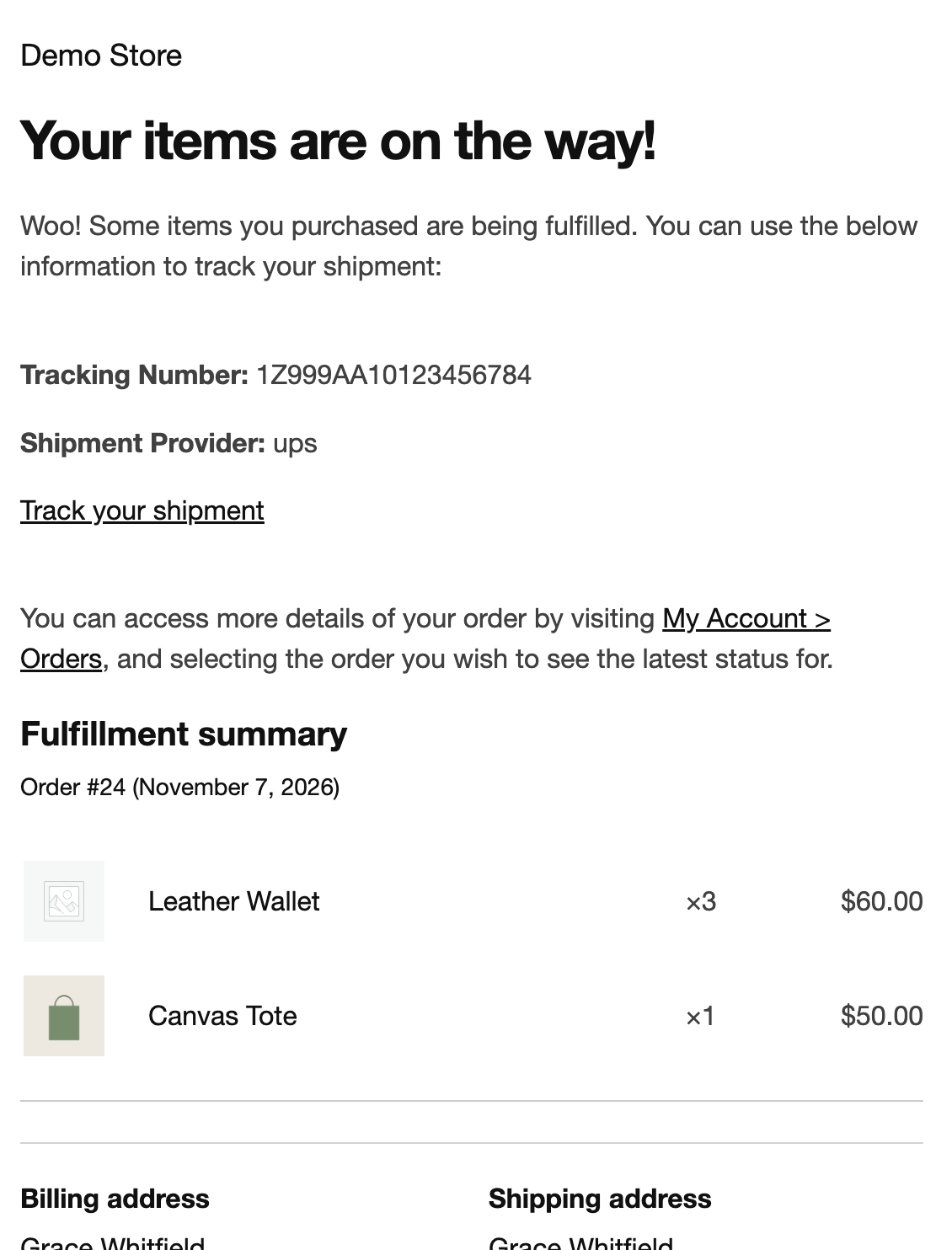
The email is a normal WooCommerce email, editable under Settings > Emails. Its subject is "Items from Demo Store order 24 have been fulfilled!", its heading "Your items are on the way!", and it carries the tracking number, the provider, a Track your shipment link and the items in that fulfillment:
Back on the Orders list, the fulfilled order shows its status, number and carrier at a glance:
Three things to know before you rely on it:
- It does not change the order status. Fulfilling every item leaves the order in Processing. Completing it is still a separate step, by hand or with a bulk action.
- Settings are thin so far. Under WooCommerce > Settings > Products there is one new section, Auto-fulfill items, with two boxes: mark downloadable items fulfilled when the order is created, and the same for virtual items. There is no packing slip, no label printing and no carrier account; it records what you shipped and tells the customer.
- It is a beta. The WooCommerce team said in March 2026 that the feature leaving beta was still to be decided, and the panel, the emails and the REST API at
/wc/v3/orders/{id}/fulfillmentsmay change. Tracking plugins keep their own data, so a number added here does not appear in a plugin's tracking box, and the other way round.
If you ship whole orders from one place and want a free tracking email, it is worth turning on today. If you need a Shipped status, a packing slip, a public tracking page or bulk import of numbers, read on.
Fulfilling orders in-house
In-house fulfillment is a chain of five small jobs. Each one has a free way that works for a few orders a day and a plugin for when the free way is where the time goes.
1. Know the moment an order lands
The New order email is enough when you check your inbox anyway. If the person packing is not the person reading email, or orders need to be seen in a shared place, Slack, Telegram and Discord Order Notifications posts each new order to a team channel the moment it is placed, with the items, the total, the shipping method and a link to the order in WooCommerce. A #orders channel on a phone in the packing room beats refreshing the Orders screen.
2. Pick from a list, not from twenty order screens
For a handful of orders, open each one and pack from the order screen. Once it is twenty orders a morning, you want one list of what to pick:
- Orders to Google Sheets adds every order to a Google Sheet as it arrives, with the items, quantities, address and shipping method as columns, and updates the row when the status changes. The sheet becomes the day's pick list, and the person packing needs no WordPress login.
- Order Export CSV ships with a starter profile, Line items (one row per item), that writes one row per line item with the SKU and quantity. Set its date range to Today and tick only Processing and it becomes the morning's pick list. Run it from WooCommerce > Export orders, or tick orders on the Orders list and choose it under Bulk actions, where there is one Export to CSV action per profile.
A pick list sorted by SKU, with quantities totalled, is the single biggest time saver in a small warehouse, because you walk the shelves once instead of once per order.
3. Track each order's stage with statuses
WooCommerce's statuses stop at Processing and Completed, which is fine when one person does everything. With two people, or a courier collection at four o'clock, you want to see which orders are packed and waiting. Custom Order Statuses adds the statuses your room actually has, such as Packed, Awaiting pickup or Awaiting parts:
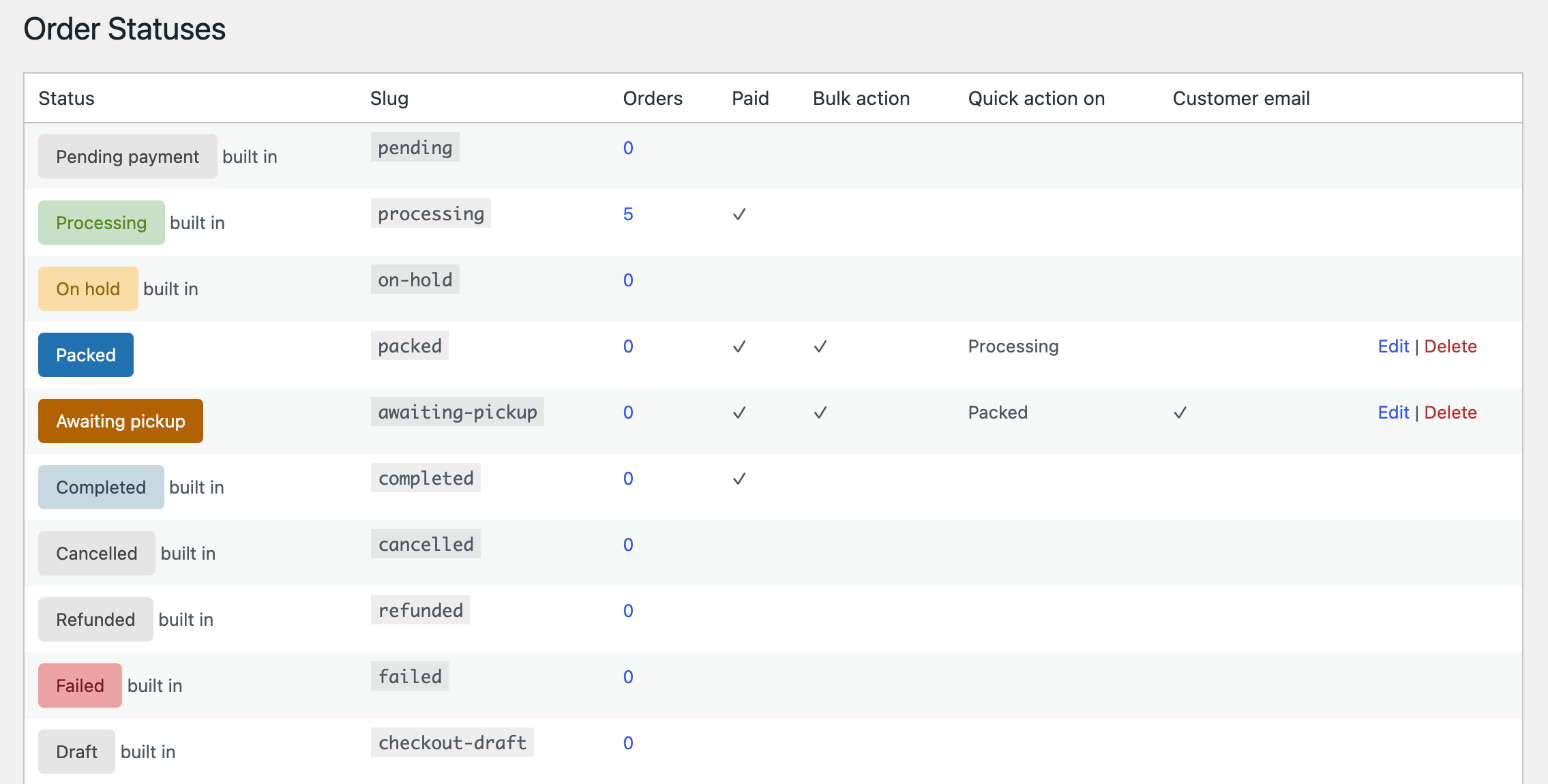
Each custom status gets a colour badge, and you choose the rest: a Change status to bulk action, on by default; a one-click Mark as packed button on orders in whichever status you pick, such as Processing, which sits in the Orders list's Actions column, so turn that column on under Screen Options; and its own customer email. A status can count as paid, so downloads stay available and the orders stay in the reports. The flow becomes Processing → Packed → Awaiting pickup → Completed, and anyone can see at a glance what is still on the bench.
4. Buy the label
Nothing in WooCommerce prints a label, so the label comes from one of these:
- The carrier's own site or account. Type the address in, pay, print. Fine for a few parcels, and every address is typed twice.
- WooCommerce Shipping, WooCommerce's free label plugin. It prints USPS, UPS, DHL Express and FedEx labels from the order screen, paid through your WordPress.com account, and adds the tracking number to the Completed order email. The catch is where you are: it only works for stores shipping from the United States and its territories, in US dollars.
- ShipStation, through the free ShipStation for WooCommerce plugin. ShipStation pulls your orders in, you buy labels for many carriers in one place, and when you ship it writes the carrier and tracking number back to the order as a customer-visible note and moves the order to the status you choose in the plugin settings, Completed by default, so WooCommerce sends its usual status email. ShipStation can also send its own branded shipping email, switched on in its notification settings. The plugin is free; ShipStation itself is a paid subscription after a 30-day trial.
- Any other label app that reads WooCommerce orders, such as Sendcloud, Easyship or Shippo, each with its own carriers and countries.
Whichever you pick, make sure the label app writes the tracking number back to the order, or you will be copying numbers by hand in step 5.
5. Tell the customer it has shipped
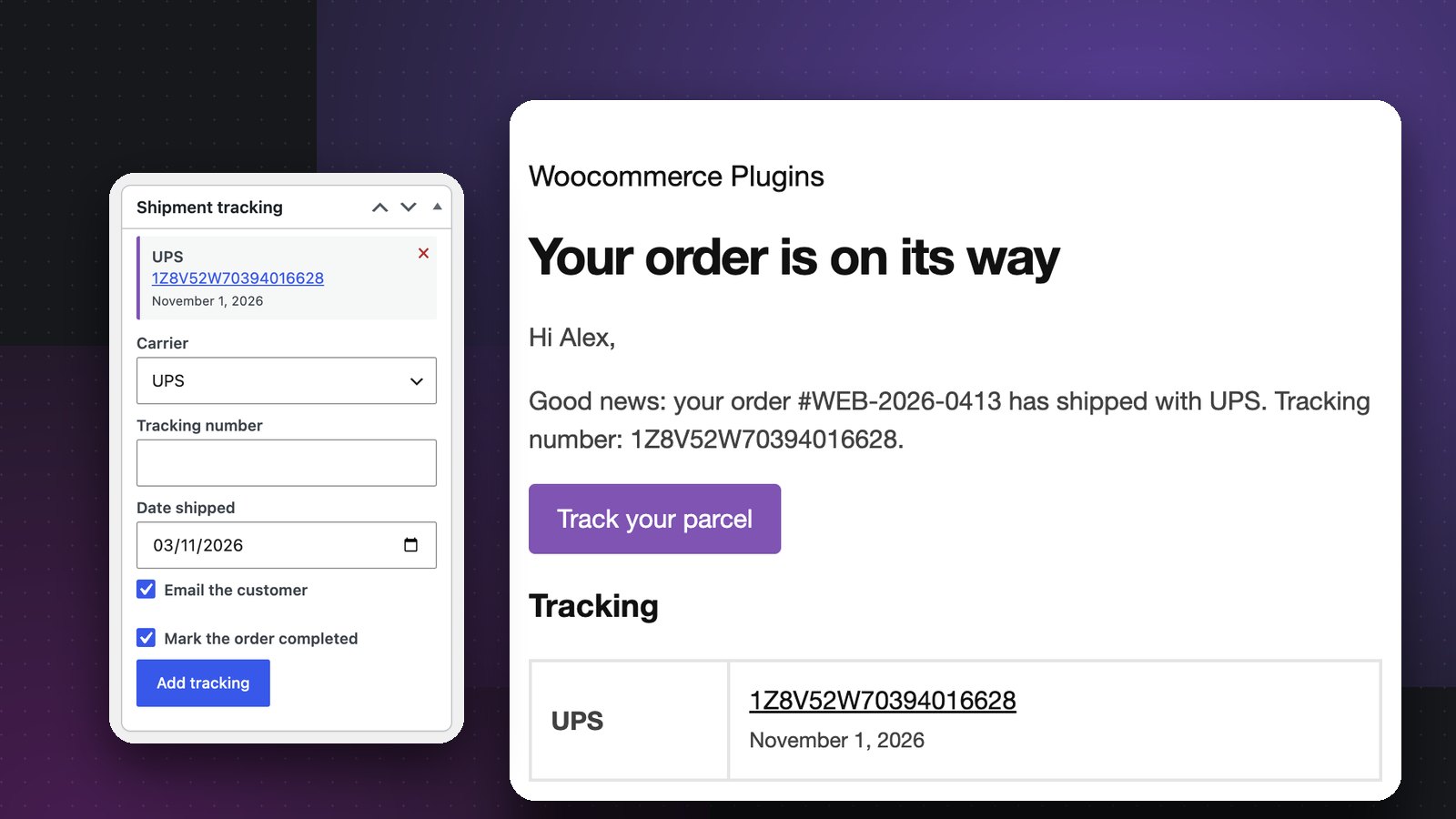
The Completed order email is a generic one: on a current install its subject is "Your order from [store name] is on its way!", on stores set up before WooCommerce's email improvements it is "Your [store name] order is now complete", and either way it carries no tracking number unless something adds one. Your options are the core Order Fulfillments feature above, or Shipment Tracking, which adds a tracking box to the order and sends a Shipped email with a Track your parcel button the moment a number goes in. It also shows the number in My Account and on the thank-you page, gives the store a public tracking page, can mark the order completed at the same time, and takes numbers in bulk by CSV or through the REST API. We compared all the ways to send a shipping confirmation in How to send shipment tracking emails in WooCommerce.
Using a 3PL with WooCommerce
A third-party logistics company holds your stock in its warehouse and, for every order, picks it, packs it, ships it and handles the return. You send stock in by the pallet and orders in one at a time. You are usually charged for receiving stock, for storage by the bin or pallet per month, per order for picking and packing, for packaging, and for postage at the 3PL's rates, so the right question is whether those fees are less than your time plus your own postage.
Technically a 3PL needs two things from your store: a way to get the orders, and a way to put tracking numbers and stock levels back. There are three ways to connect them.
The 3PL's own integration
The larger fulfillment services have a WooCommerce connection you switch on from their side. ShipBob, for example, connects to the store with a button, imports products and orders, and sends the tracking number back to the order when it ships. Amazon's Multi-Channel Fulfillment has an official WooCommerce extension that sends each order to Amazon when the payment completes, as long as the product's SKU matches the Seller SKU in your Amazon inventory exactly, and it needs an Amazon Pro Seller account with FBA. Many smaller 3PLs run on ShipStation, so connecting means installing the ShipStation plugin and giving them access.
An integration is the easiest route when your 3PL has one. Check three things before you sign: that it writes tracking back to the WooCommerce order (not only to its own dashboard), that it syncs stock levels so you stop selling what they have run out of, and what it does with an order that is edited or cancelled after it was sent.
A file, sent on a schedule
Smaller 3PLs, and most fulfillment houses outside the big platforms, work from a spreadsheet: send us today's orders in this layout, and we will send you back the tracking numbers. That needs no integration at all.
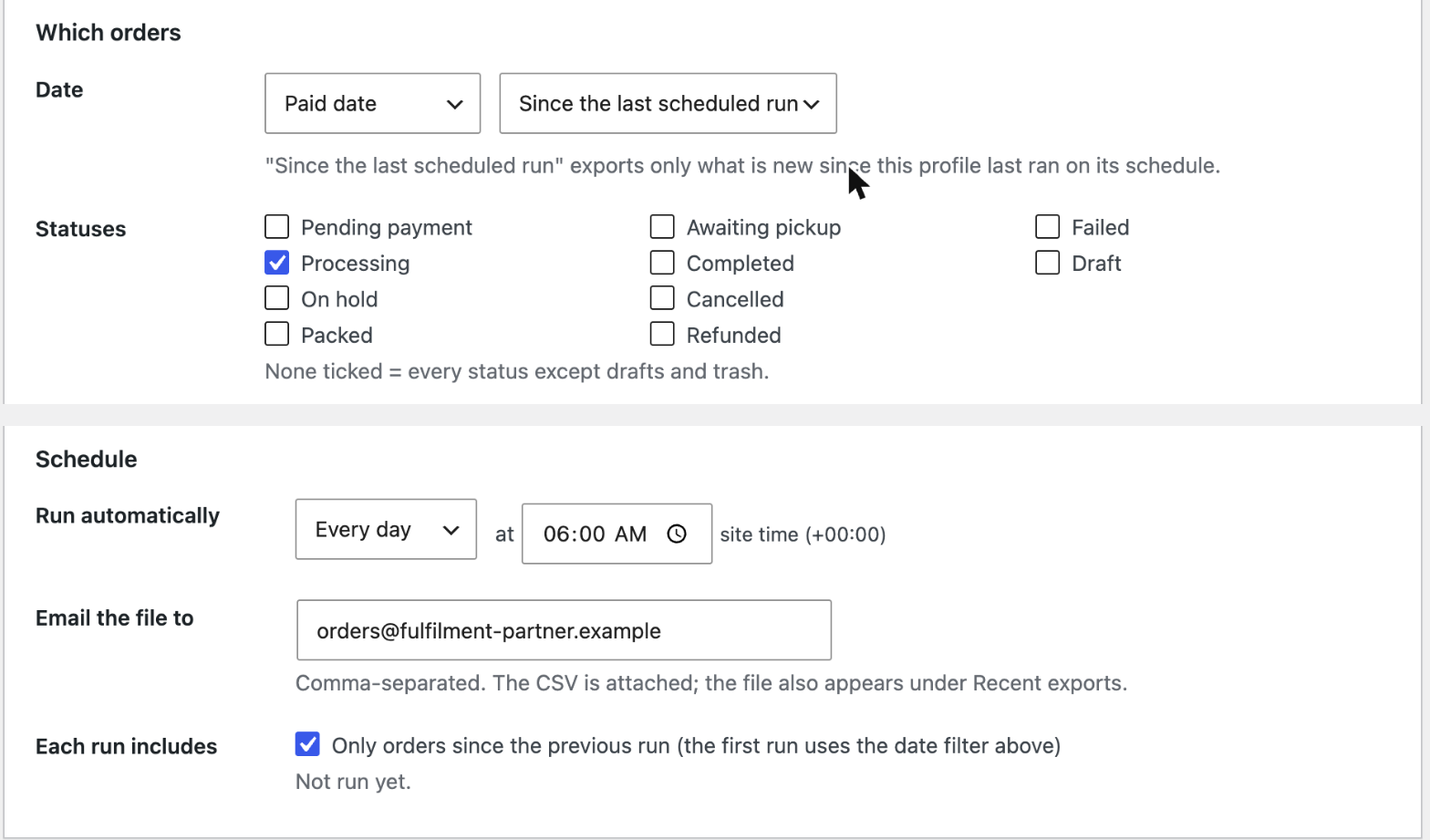
Going out, Order Export CSV does it with one profile. Pick the columns they ask for, usually one row per line item with the order number, the shipping address, the SKU and the quantity, and set the profile to run every day at a time you choose and email the file to the 3PL. Tick Only orders since the previous run and each run includes just the orders that arrived since the last one, with the first run using the profile's date filter, so nothing is sent twice and nothing is missed:
Coming back, the 3PL's export of order numbers and tracking numbers goes in under WooCommerce > Shipment Tracking. The file needs an order_number and tracking_number column, with carrier and date_shipped optional, and in the same run you choose whether every customer gets the Shipped email and whether the Processing orders are marked completed:
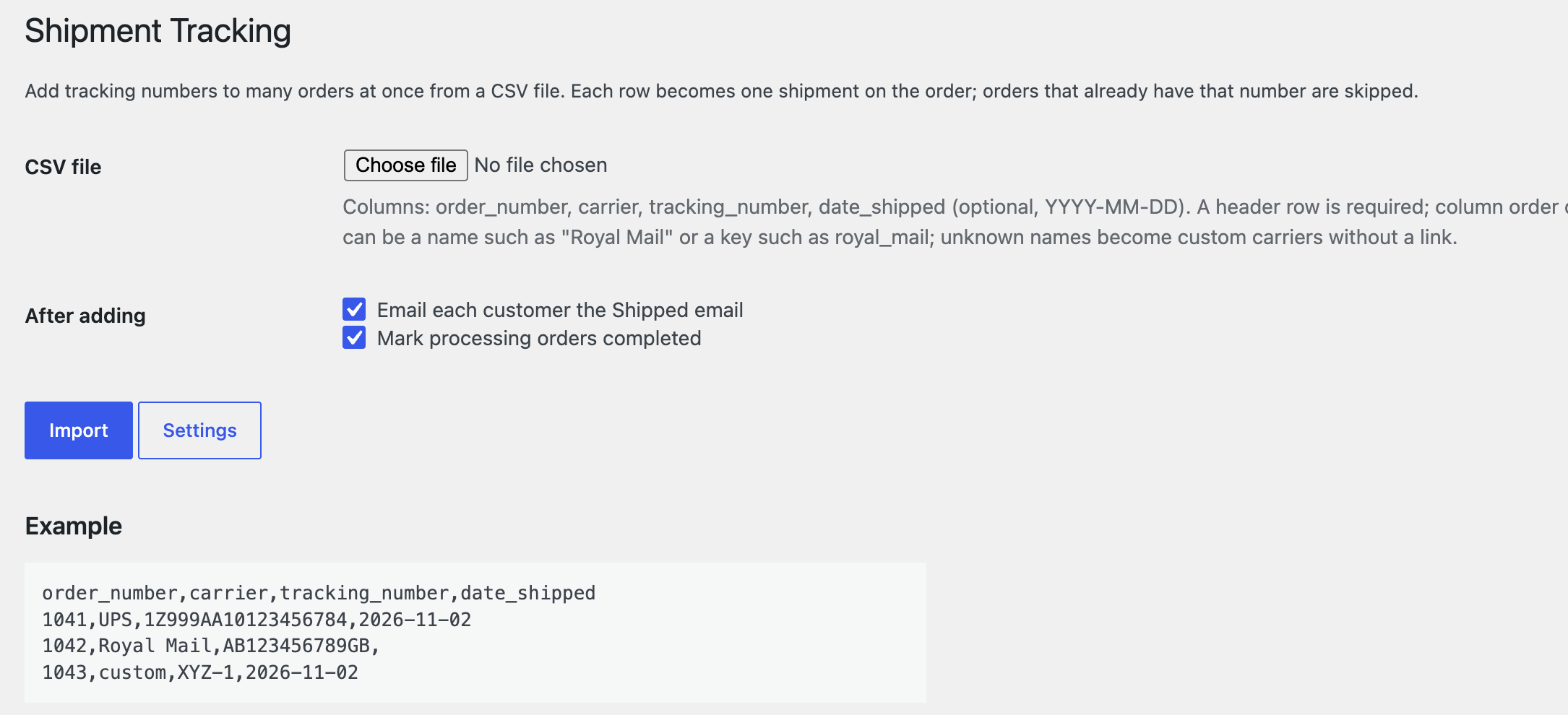
Orders that already have that number are skipped, so importing the same file twice does no harm.
The REST API
If the 3PL has a developer, or you use an automation tool such as Make or Zapier, the orders can be read from WooCommerce's REST API as they are placed, and tracking can be written back the same way: to the shipment_tracking field that Shipment Tracking adds to the orders endpoint, which sends the Shipped email as each number lands, or to the core /wc/v3/orders/{id}/fulfillments endpoint when the beta feature is on. This is the route when you want the tracking email to go out within minutes of the parcel leaving, rather than when a file arrives.
Keeping stock in sync
An integration usually keeps WooCommerce's stock levels matched to what is on the 3PL's shelves. The file route does not, so agree how you will learn about stock: a daily stock report you key in, a shared Google Sheet, or the 3PL's portal. Until then, keep a safety margin and turn on back in stock notifications so a sold-out product collects emails instead of losing the sale.
In-house or 3PL: how to decide
| In-house | 3PL | |
|---|---|---|
| Cost shape | Your time, your space, retail or negotiated postage | Receiving, storage, per-order pick and pack, packaging, their postage rates |
| Best for | Low volume, products that need care or personalising, brands that want their own unboxing | Steady volume, standard products, selling into several countries, no space or staff for packing |
| Speed | Whatever you can manage, including same day | Cut-off times and service levels in the contract |
| Control | Total, including packaging, inserts and quality | What the contract says; packaging options cost extra |
| Returns | You open the box | They receive, inspect and restock, for a fee |
| Setup | Statuses, labels, tracking emails as above | Integration or file exchange, SKU matching, stock sync |
Signs it is time to look at a 3PL: packing takes more hours a week than selling, stock has outgrown the room, orders ship late in busy weeks, you want to sell into a country where domestic postage is far cheaper than shipping from home, or you are about to launch somewhere you cannot be.
Signs to stay in-house: fewer than a few dozen orders a day, products that need a personal touch, heavy or awkward items a 3PL charges extra to store, a margin that cannot absorb per-order fees, or an unboxing that is part of the brand.
Plenty of stores do both: the 3PL ships the standard catalogue and the studio ships the made-to-order pieces. Order Export CSV's profile can be limited to orders containing the products the 3PL holds, and a custom status such as "Sent to warehouse" keeps the two streams apart on the Orders list.
Get the shipping rates right first
Fulfillment starts at checkout. If customers are charged a flat rate for a parcel that costs three times that to send, the cheapest packing process in the world will not save the margin. Table Rate Shipping charges by weight, price, item count or shipping class per zone, which is how most 3PLs and carriers price you. Conditional Payments and Shipping hides a method where it should not be offered, such as express to a country the 3PL cannot reach in two days. And if you deliver locally yourself, Order Delivery Date lets the customer choose a slot you can actually make.
Frequently asked questions
Does WooCommerce have built-in order fulfillment?
Partly, and in beta. WooCommerce 10.2 and later include an Order Fulfillments feature that adds a fulfillment panel to each order, tracking links for more than 70 carriers and a "Your items are on the way!" email. It is off by default and, as of WooCommerce 11.2, has no switch in the settings; it is enabled with wp option update woocommerce_feature_fulfillments_enabled yes. It does not print packing slips or labels, and fulfilling an order does not change its status.
Does fulfilling an order in WooCommerce mark it completed?
No. With the Order Fulfillments feature, an order whose items are all fulfilled shows Fulfilled in the Fulfillment Status column but stays in Processing until you complete it. Shipment tracking plugins, including ours, have an option to mark the order completed when a tracking number is added.
Can WooCommerce print packing slips?
Not on its own. The order screen can be printed from the browser, but there is no packing slip or invoice layout in core. WooCommerce sells a Print Invoices and Packing Lists extension, and there are free packing slip plugins on WordPress.org; label apps such as ShipStation print packing slips alongside the label.
What is a 3PL, and does WooCommerce work with one?
A 3PL, or third-party logistics provider, stores your stock and picks, packs and ships your orders for a fee. WooCommerce works with any of them: the big platforms have their own integrations, and the rest work from a scheduled CSV of orders going out and a CSV of tracking numbers coming back, which Order Export CSV and Shipment Tracking handle between them, or through the REST API.
Can Amazon fulfill my WooCommerce orders?
Yes, through Amazon Multi-Channel Fulfillment. The official WooCommerce Amazon Fulfillment extension sends each paid order to Amazon for the products you flag, and Amazon ships it from FBA stock. Your WooCommerce SKUs must match the Seller SKUs in Amazon exactly, case included, you need a Pro Seller account with FBA, and the parcel ships in plain unbranded packaging by default.
How do tracking numbers get from the 3PL into WooCommerce?
Three ways. An integration writes them to the order when the parcel ships. A CSV from the 3PL, with order numbers and tracking numbers, is imported under WooCommerce > Shipment Tracking, which emails the customers and completes the orders in the same run. Or the 3PL's system writes them through the REST API, to the plugin's shipment_tracking field or to the core fulfillments endpoint.
Written by the Plugin Wizards team
We are App Wizards, the studio behind the 31 WooCommerce plugins on this site. We write these guides from the questions store owners send to support, and we test every step on a real store before it goes up. About us
The plugins in this guide
 Orders & notifications
Order Export CSV
Export orders to CSV: saved profiles, 90+ columns plus custom meta, filters, one row per order or per item, scheduled email exports, bulk action, WP-CLI.
View plugin
 Orders & notifications
Shipment Tracking
Tracking numbers on orders with carrier links, a Shipped email, a public tracking page, My Account and CSV import.
View plugin
 Orders & notifications
Custom Order Statuses
Add your own order statuses such as Packed, Awaiting pickup or Ready to ship, with colours, bulk actions and safe deletion.
View plugin
 Orders & notifications
Orders to Google Sheets
Every WooCommerce order in a Google Sheet, automatically. Rows update when an order changes status or is refunded. No Google Cloud project needed.
View plugin